Annotation Sets Management
The Annotation Sets management page allows Project Managers and Admins to create and manage Annotation Set definitions used in Human Evaluation (HEVAL) jobs. An Annotation Set is a named collection of fields — combo boxes, check boxes, or plain text inputs — that are displayed on the evaluation form during job execution.
Each field in an annotation set can be configured with dynamic visibility conditions: when the conditions are fulfilled the field is displayed on the evaluation form, otherwise the field stays hidden.
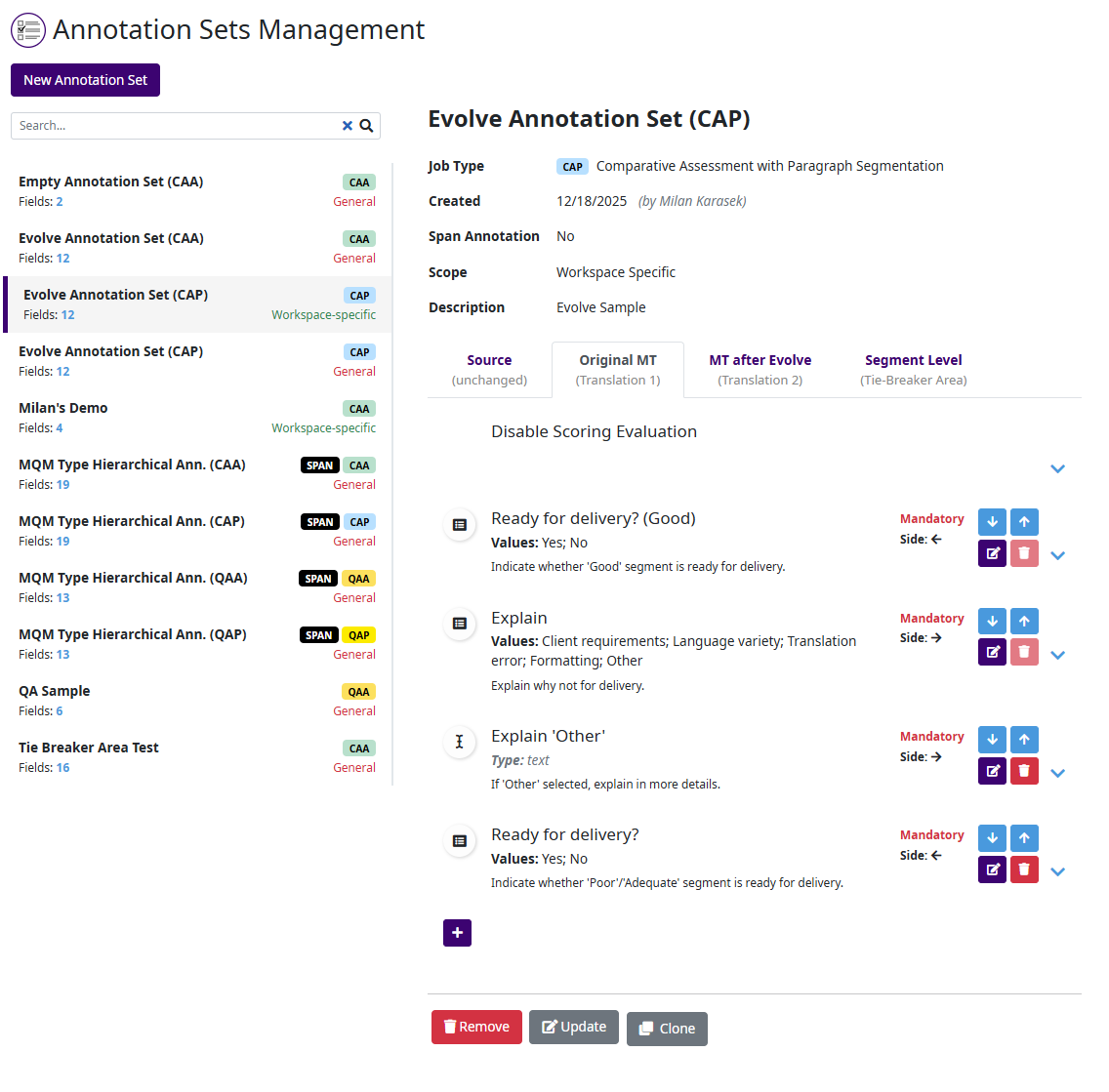
Annotation Set List
The left side of the page displays a searchable list of all available annotation sets. Each entry in the list shows:
Name — the annotation set name.
Job Type — the target job type for which the set is designed, indicated by a colored badge (e.g. CAA, CAP, QAA, QAP).
Scope — either General (available across all workspaces) or Workspace-specific (limited to a particular workspace).
Fields — the total number of fields defined in the set.
Use the Search box at the top of the list to filter annotation sets by name. Click on an annotation set entry to display its details in the right panel.
To create a new annotation set click the New Annotation Set button above the list.
Annotation Set Details
When an annotation set is selected from the list, the right panel shows its detailed information and field configuration.
The header area displays the following properties:
Property |
Description |
|---|---|
Job Type |
The HEVAL job type this annotation set is designed for (e.g. CAP — Comparative Assessment with Paragraph Segmentation). |
Created |
The creation date and the author of the annotation set. |
Span Annotation |
Indicates whether span-level annotation is enabled (Yes / No). |
Scope |
General or Workspace Specific. |
Description |
An optional textual description of the annotation set. |
Actions
At the bottom of the page, the following action buttons are available:
Remove — deletes the selected annotation set entirely.
Update — updates the annotation set details. See Annotation Set Creation/Update for more information.
Clone — creates a copy of the selected annotation set, which can then be modified independently.
Field Tabs
Below the header, fields are organized into separate tabs depending on which part of the evaluation form they apply to:
Source (unchanged) — fields applied to the source text column.
Translation 1 — fields applied to the first translation column.
Translation 2 — fields applied to the second translation column (applicable to CAA and CAP job types).
Segment Level (Tie-Breaker Area) — fields that apply to the entire segment (source and translations together).
Each tab shows its own ordered list of fields.
The Disable Scoring Evaluation option at the top of a tab allows defining conditions under which the scoring part of the evaluation form is disabled (shows ‘N/A’ values). When the specified conditions are met, evaluators will not be able to enter scores — only the annotation fields will remain active. This is useful in scenarios where scoring is not applicable for certain segments or evaluation contexts.
The Disable Scoring Evaluation is not available for Span annotations.
Field Configuration
Each field entry in the list displays the following information:
Name — the label of the field as shown on the evaluation form.
Type — the input type, indicated by an icon: combo box (list of predefined values), check box, or plain text.
Values — for combo box fields, the list of selectable values (e.g. Yes; No or Client requirements; Language variety; Translation error; Formatting; Other).
Mandatory / Optional — whether the evaluator is required to fill in the field.
Side — an arrow indicator showing where the field appears on the page. Fields can be displayed in two columns on the evaluation form, so when defined left and right side on consecutive fields, those will be displayed next to each other. Otherwise fields will be displayed in a single column.
Description — a hint or instruction displayed in the tooltip on the evaluation form, guiding the evaluator on how to fill it in.
Fields can be reordered using the up / down arrow buttons on the right side of each entry. The order determines the display order on the evaluation form.
Each field also has edit and delete buttons for modifying or removing individual fields.
To add a new field to the currently selected tab, click the  button at the bottom of the field list.
Creating/Editing an Annotation Field
Clicking the edit button on a field opens the Update Annotation Field dialog:
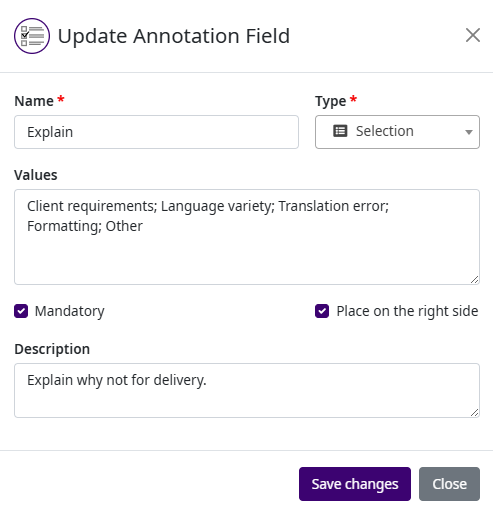
The dialog contains the following fields:
Field |
Description |
|---|---|
Name |
The label of the field as displayed on the evaluation form. Required. |
Type |
The input type — Selection (combo box with predefined values), Checkbox, or Text (plain text input). Required. |
Values |
For Selection type fields, a semicolon-separated list of selectable values (e.g. Client requirements; Language variety; Translation error; Formatting; Other). |
Mandatory |
When checked, the evaluator is required to fill in this field before submitting evaluated segment. |
Place on the right side |
When checked, the field is placed on the right side of the evaluation form layout, allowing side-by-side display with the preceding field. |
Description |
A hint or instruction displayed as a tooltip on the evaluation form, guiding the evaluator on how to fill in the field. |
Click Save changes to apply the modifications or Close to discard.
Field Visibility Conditions
Each field can have dynamic visibility conditions that control when the field is displayed on the evaluation form. When the conditions are not met, the field remains hidden from the evaluator.
To view or manage conditions, click the expand arrow (chevron) on the right side of a field entry. The expanded area shows the label Show Annotation Field when: followed by the list of defined conditions.
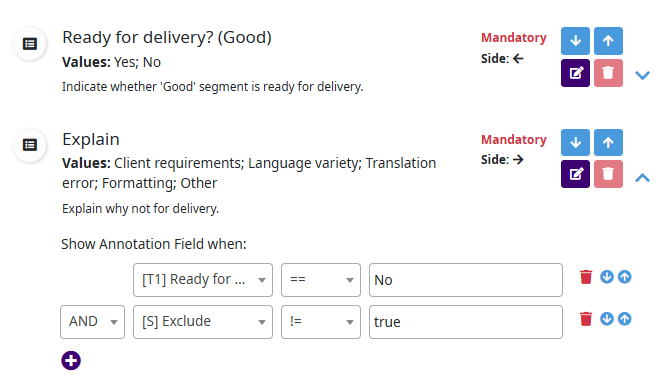
Each condition row consists of the following parts:
Logical operator — defines how this condition is combined with the preceding one. Available operators are AND and OR. The first condition in the list does not have a logical operator.
Field reference — the field whose value is evaluated. The field name is prefixed with a section indicator:
[S] — a field from the Source section
[T1] — a field from the Translation 1 section
[T2] — a field from the Translation 2 section
[T1 Score] — the Translation 1 score value
[T2 Score] — the Translation 2 score value
Operand — the comparison operator. Available operands are: equals (
==), not equal (!=), bigger than, smaller than, and Contains (for text-based comparisons).Value — the value to compare against.
Note
When the referenced field is of type Checkbox, use true to test
whether the checkbox is checked and false to test whether it is
unchecked.
Each condition row has buttons to delete the condition and to reorder it within the list.
To add a new condition, click the  button below the
existing conditions.
button below the
existing conditions.